


These are the docs for Metabase v0.64. Check out the docs for the current stable version, Metabase v0.63.
LDAP
Metabase supports authentication with Lightweight Directory Access Protocol (LDAP).
Required LDAP attributes
You need to set up your LDAP directory with these attributes:
- email (defaulting to the
mailattribute) - first name (defaulting to the
givennameattribute) - last name (defaulting to the
snattribute).
If your LDAP setup uses other attributes for these, you can change them in the Attributes section of the LDAP settings page. The section becomes available after you save your server settings.
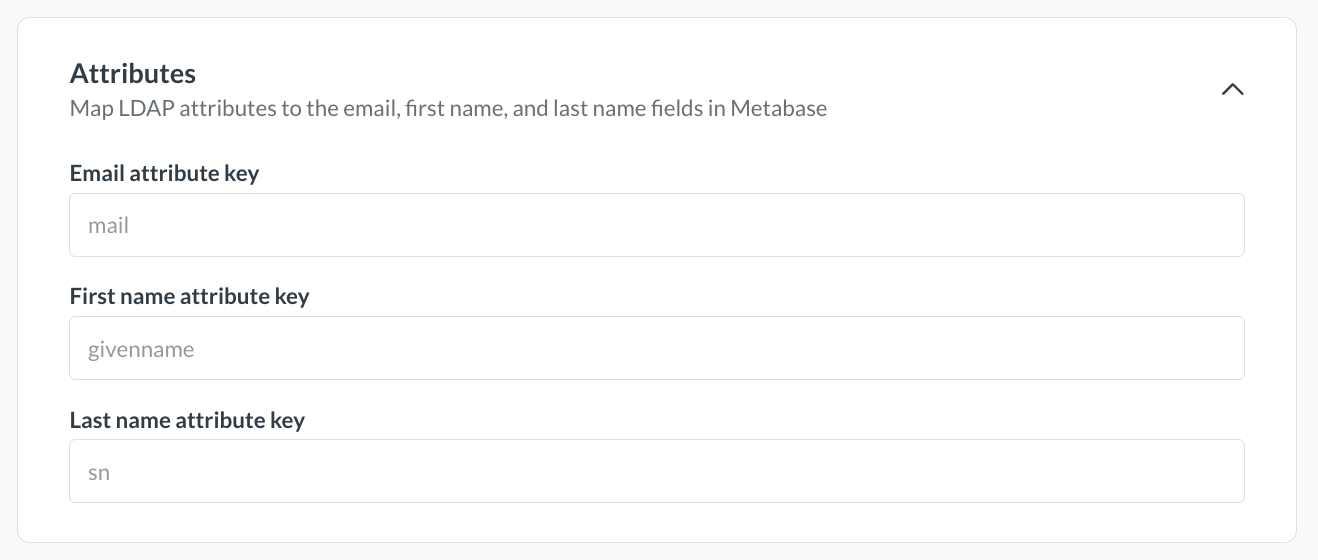
Your LDAP directory must have the email field populated for each entry that will become a Metabase user, otherwise Metabase won’t be able to create the account, nor will that person be able to log in. If either name field is missing, Metabase will use a default of “Unknown,” and the person can change their name in their account settings.
Enabling LDAP authentication
To enable LDAP authentication, go to Admin > Settings > Authentication > LDAP and click Set up. Fill out the form, then click Save and enable.
User provisioning
User provisioning is enabled by default. When someone logs in via LDAP, Metabase creates an account for them if they don’t have one, and reactivates their account if it is deactivated.
If you disable user provisioning, users without accounts or with deactivated accounts will not be able to log in.
Server settings
- LDAP host (required): Your server hostname. For example,
ldap.yourdomain.org. - LDAP port: The server port, usually 389, or 636 if you use SSL.
- LDAP security: None, SSL, or StartTLS.
- Username or DN: The distinguished name to bind as, if any. Metabase uses this name to look up information about other users.
- Password: The password to bind with for the lookup user.
Then save your changes. Metabase will automatically pull the required attributes from your LDAP directory.
User schema
The User schema section on this same page is where you can adjust settings related to where and how Metabase connects to your LDAP server to authenticate users.
User search base
User search base is required. Enter the distinguished name (DN) of the entry in your LDAP server that Metabase should use as the starting point when searching for users.
For example, let’s say you’re configuring LDAP for your company, WidgetCo, where your base DN is dc=widgetco,dc=com. If entries for employees are all stored within an organizational unit in your LDAP server named People, you’ll want to supply the user search base field with the DN ou=People,dc=widgetco,dc=com. This tells Metabase to begin searching for matching entries at that location within the LDAP server.
User filter
You’ll see the following grayed-out default value in the User filter field:
(&(objectClass=inetOrgPerson)(|(uid={login})(mail={login})))
When a person logs into Metabase, this command confirms that the login they supplied matches either a UID or email field in your LDAP server, and that the matching entry has an objectClass of inetOrgPerson.
This default command will work for most LDAP servers, since inetOrgPerson is a widely-adopted objectClass. But if your company for example uses a different objectClass to categorize employees, this field is where you can set a different command for how Metabase finds and authenticates an LDAP entry upon a person logging in.
Group mapping
Instead of manually assigning people to groups, use group mappings to assign them based on their LDAP groups.
To map an LDAP group to a Metabase group:
- In the Group mapping section, turn on the toggle.
- Next to Manual group mappings, click New.
- Enter the distinguished name for the LDAP group, such as
cn=Accounting,ou=Groups,dc=example,dc=org. - From Pick Metabase group, select the Metabase groups that people in this LDAP group should be added to.
- Click Add mapping.
- Repeat steps 2 to 5 for each group you want to map.
Some LDAP directories list each person’s groups on their own entry. If yours does, leave Group search base empty. Otherwise, enter the DN where your group entries live.
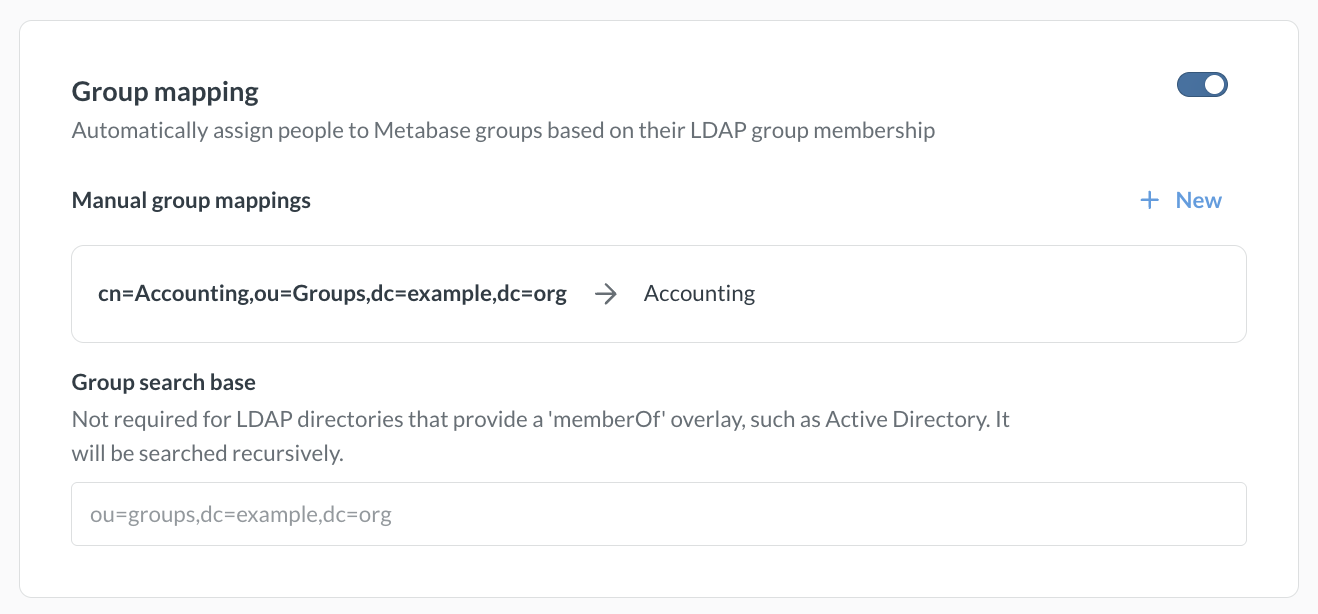
Some things to keep in mind regarding group mapping:
- The Administrators group works like any other group.
- Updates to a person’s group membership based on LDAP mappings are not instantaneous; the changes will take effect only after people log back in.
- People are only ever added to or removed from mapped groups. The sync has no effect on Metabase groups that don’t have an LDAP mapping.
LDAP group membership filter
LDAP advanced features are only available on Pro and Enterprise plans (both self-hosted and on Metabase Cloud).
Group membership lookup filter. The placeholders {dn} and {uid} will be replaced by the user’s Distinguished Name and UID, respectively.
Syncing user attributes with LDAP
LDAP advanced features are only available on Pro and Enterprise plans (both self-hosted and on Metabase Cloud).
You can manage user attributes such as names, emails, and roles from your LDAP directory. When you set up row and column security, your LDAP directory will be able to pass these attributes to Metabase.
Troubleshooting login issues
Further reading
Read docs for other versions of Metabase.