


These are the docs for Metabase v0.64. Check out the docs for the current stable version, Metabase v0.63.
Library
Some features of the library are only available on Pro and Enterprise plans (both self-hosted and on Metabase Cloud).
“I have always imagined that Paradise will be a kind of library.”
― Jorge Luis Borges
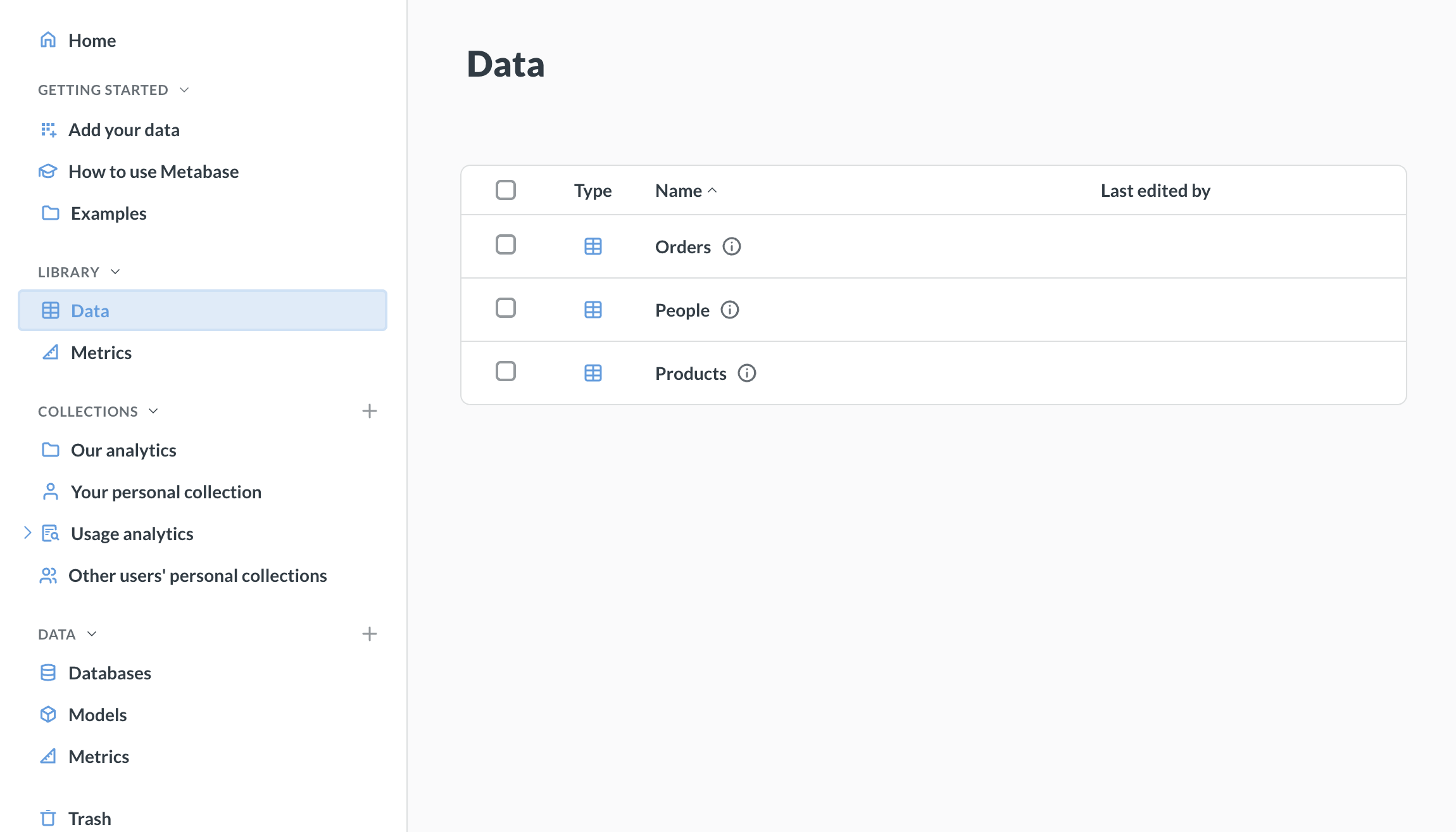
The Library helps you create a source of truth for analytics by providing a centrally managed set of curated content and shared definitions. Use the Library to separate authoritative, reusable components from ad-hoc analyses and definitions.
How the Library works
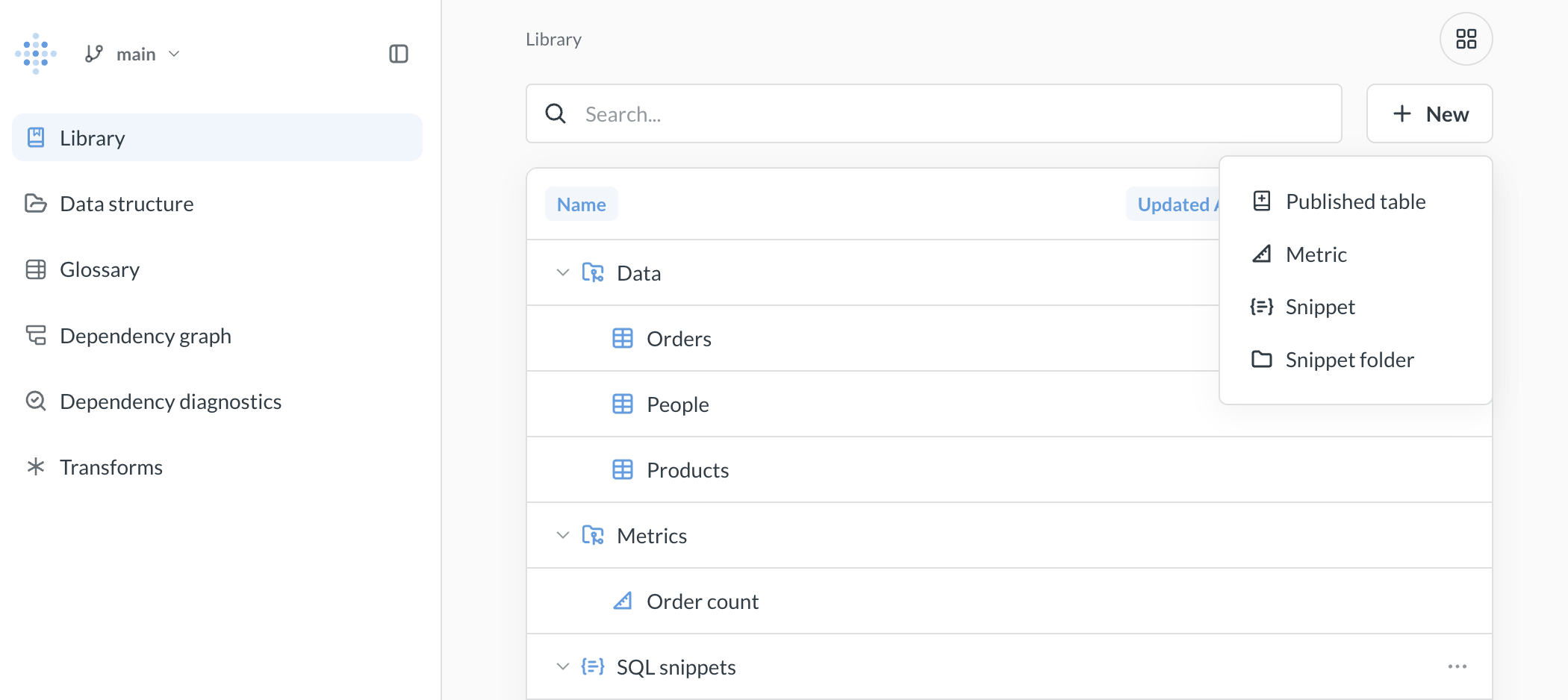
The Library has two parts, both of which you manage in Data Studio:
- Semantic layer: Curated tables, metrics, and SQL snippets.
- Glossary: Definitions of your business terms.
Once you create the Library:
- A Library section appears in the navigation sidebar of the main app, listing the tables and metrics in your semantic layer.
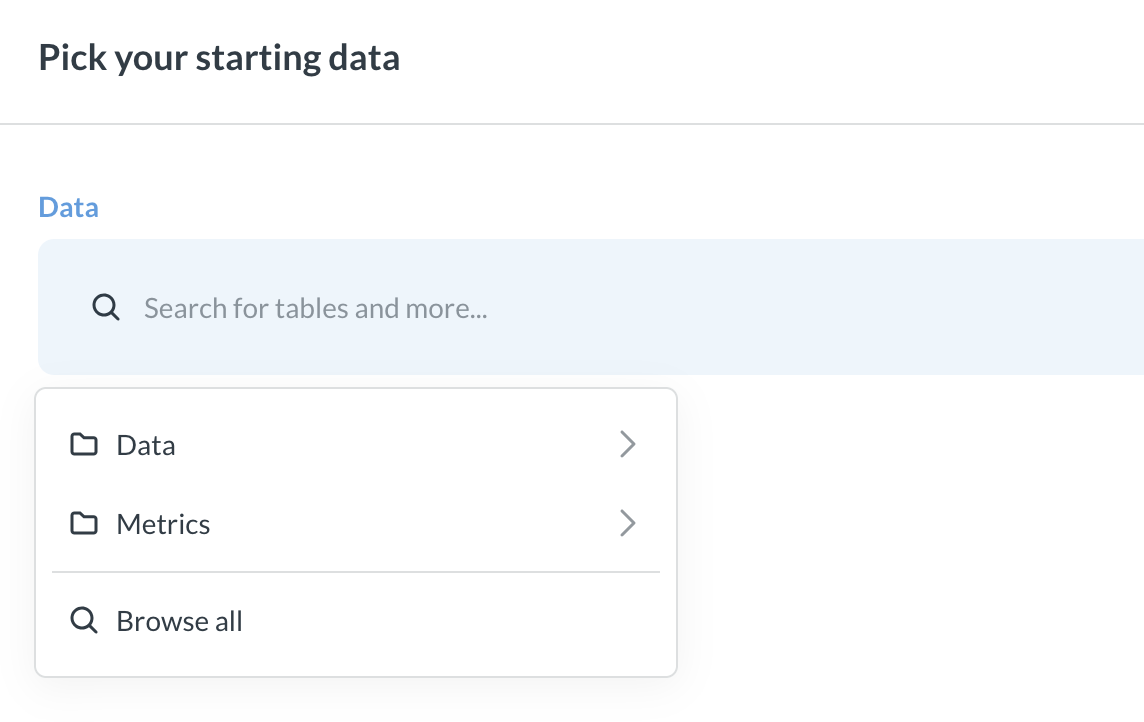
- The data picker in the query builder defaults to showing tables and metrics from the Library to encourage people to use your vetted content.
- If you turn on Metabot’s Verified or curated content setting, Metabot will only use content that’s verified, in an official collection, or published to the Library.
- You can sync the Library to Git to version your semantic layer and glossary.
Semantic layer
Data Studio > Semantic layer
The semantic layer is a collection of curated tables (together with their segments and measures), metrics, and SQL snippets that people and AI can use to build authoritative questions and dashboards.
The semantic layer is what people see in the Library section of the main app’s navigation sidebar, and in the data picker.
Glossary
Data Studio > Glossary
The Glossary is a place for your team to define revelant business terms.
Create the Library
Before you can add items to the semantic layer, you’ll need to create the Library:
- Click the grid icon in the upper right and select Data Studio.
- In the left sidebar, click Semantic layer.
- Click Create my Library.
Metabase will create the Library with its Data and Metrics collections. By default, everyone can view the Library, and people in the Data Analysts group can curate it. See Library permissions.
If you try to publish a table from Connected data before you’ve created the Library, Metabase will ask you to create the Library first.
Adding items to the Library
To add items to the Library:
- Click the grid icon in the upper right and select Data Studio.
- In the left sidebar, click Semantic layer.
- Click + New.
The + New menu has options to:
- Published table: Publish a table to the Library.
- Metric: Create a metric in the Library.
- Snippet: Create a SQL snippet.
- Collection: Create a subcollection or snippet folder.
To manage the glossary, see Glossary.
Library organization
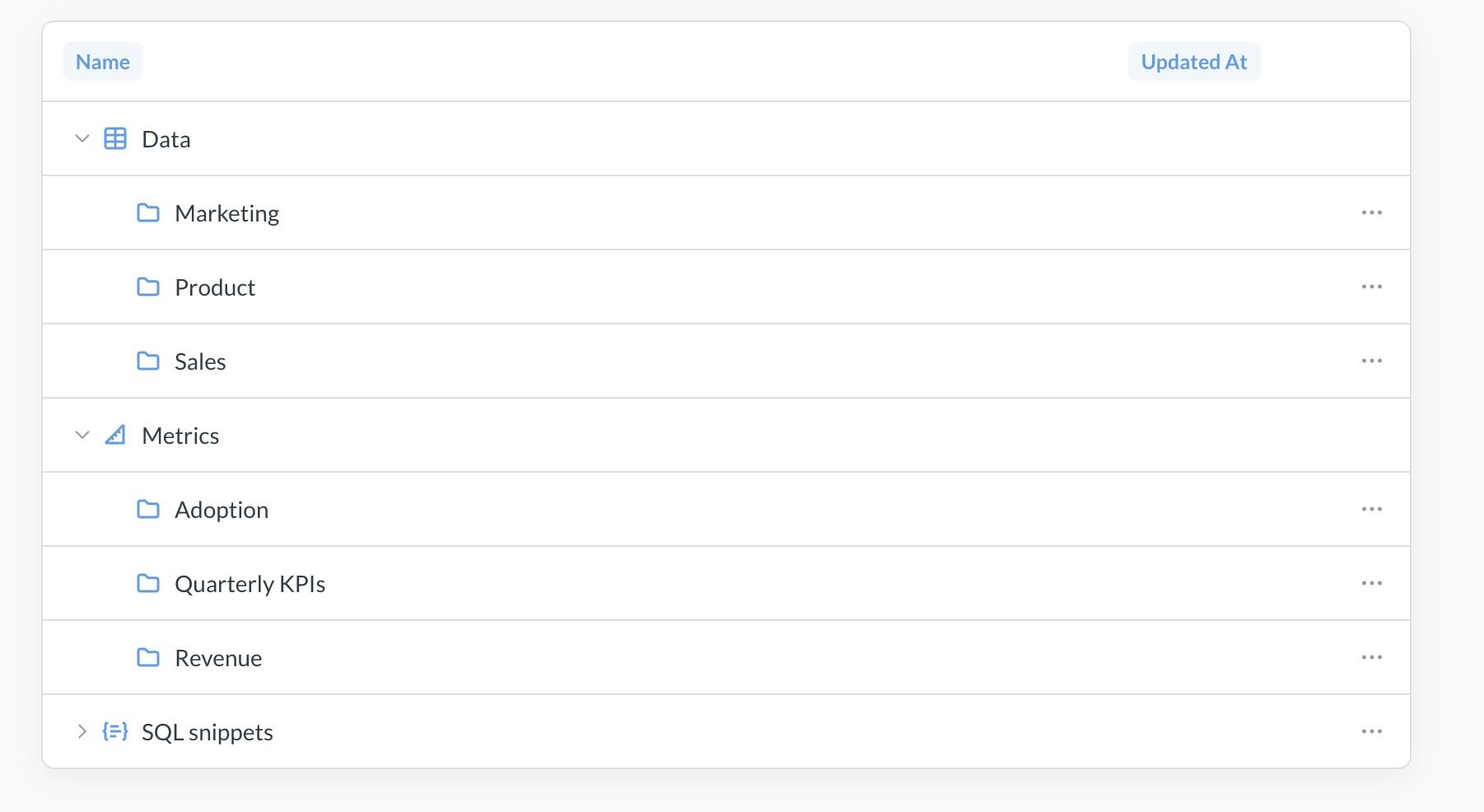
The semantic layer lives in a special collection called Library, which has three root sections:
- Data: For published tables.
- Metrics: For official metrics.
- SQL snippets: For all the SQL snippets on your instance.
These root sections are predefined. You can’t rename or archive them, but you can use permissions to control who sees them.
Each of these sections can have subcollections. For example, if your Metabase has a lot of published tables, you might want to organize the Library > Data collection into “Sales”, “Marketing”, and “Product” subcollections.
To create a subcollection in one of the Library’s sections:
- Go to Data Studio > Semantic layer.
- Click + New and select Collection.
- Under Collection it’s saved in, select the parent collection.
- Add the name and description for the collection and click Create.
Publishing tables
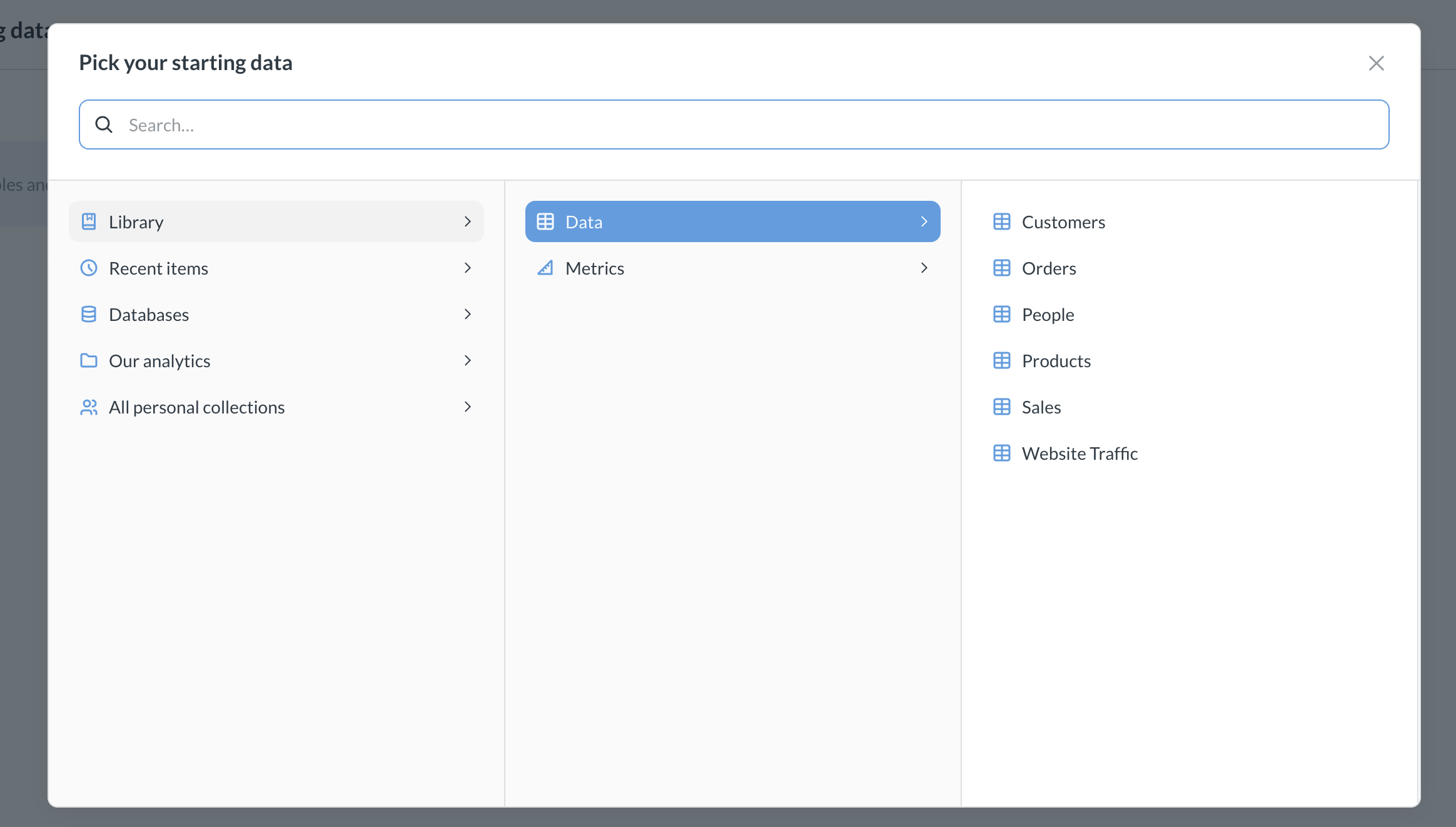
Tables published to the Library appear first in the Data section when people choose data sources, nudging them toward trusted data.
You must explicitly publish tables to the Library. We use the word “publish” to suggest that the tables you include in your Library are meant to be finished, polished tables. If your tables need to be cleaned or combined before they’re ready for analytical queries, check out transforms.
See Published tables.
Metrics
Metrics are standardized calculations that people can trust.
Metrics can live in any collection, but metrics in the Library will be prioritized in navigation, search, the query builder, and other places. Use the Library as a place for curated, “official” metrics, like your company’s revenue.
To add an already existing metric to the Library, move the metric to the Library > Metrics collection (or any of its subcollections).
To create a new Library metric, go to Data Studio > Semantic layer and select + New > Metric. See creating metrics for more on building metrics.
SQL snippets
SQL snippets are reusable bits of code. All snippets in your Metabase are available to the library, including snippets created elsewhere in your Metabase. You can also create snippet folders in the Library.
Versioning the Library
You can sync Library content to version control, giving you change history and the ability to publish content across environments. When you sync the Library, Metabase also syncs your SQL snippets and glossary terms.
Library permissions
The semantic layer lives in a special collection called Library. Metabase uses the standard collection permissions to determine who can view and edit items in the Library collection, with some caveats. Library collection permissions are only relevant to the Data and Metrics collections. Snippets permissions are handled by permissions for snippet folders. Collection permissions don’t apply to the glossary.
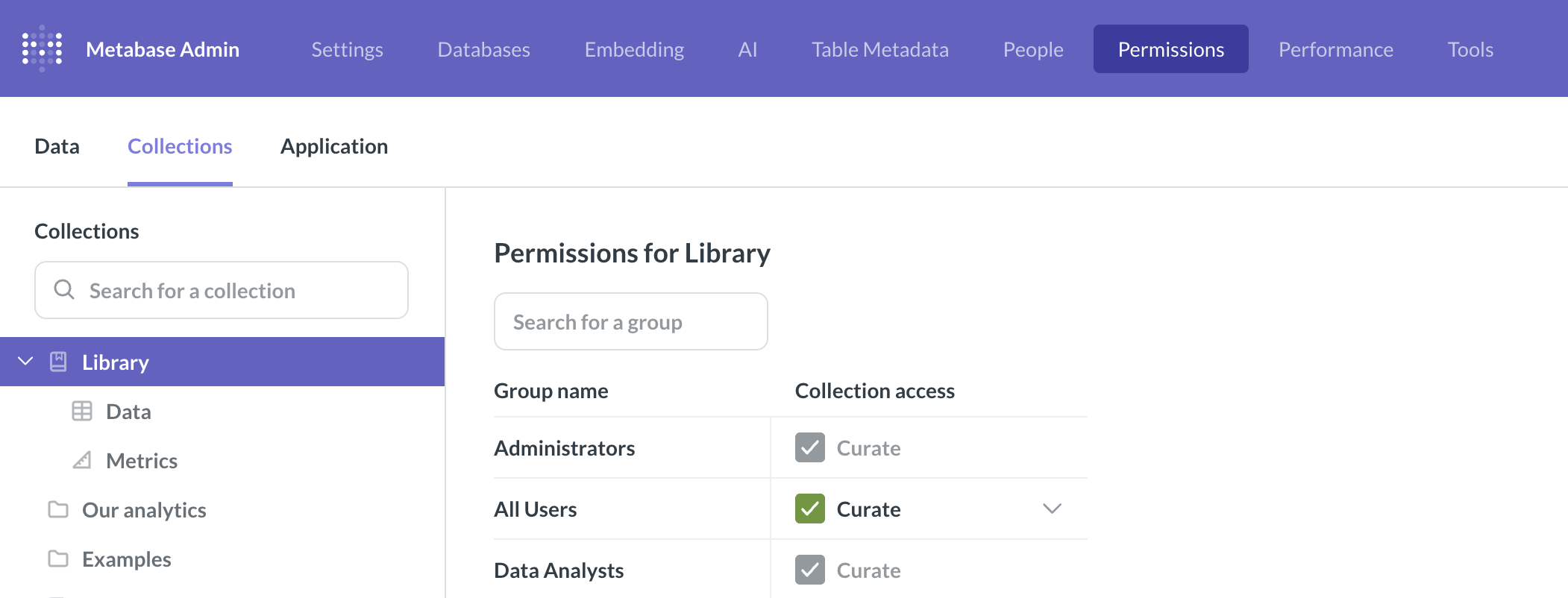
To configure permissions for the library:
-
Go to Admin > Permissions.
-
Switch to Collections in the left sidebar.
-
Select Curate, View, or No access permissions for the Library and its subcollections.
See below for the access that each permission level provides for each part of the Library.
Curate permissions
- Data collection and its subcollections: The group can view tables in the Data collection, provided they have data permissions for the tables. But they can’t add, edit, or remove tables. The Admin and Data Analyst groups are the only groups that can publish tables to the Library.
- Metrics collection and its subcollections: the group can add, edit, and archive metrics. Groups don’t need access to Data Studio to curate metrics.
View permissions
Controls whether a group can view the Library and its items.
- Data and its subcollections: The group can view tables in the Data collection, provided they have data permissions for the tables.
- Metrics and its subcollections: the group can view the metrics and use them in their queries.
No access
Groups with No access won’t even see the Library (including in the navigation sidebar and the query builder).
The group may still have access to tables published to the Library, if they have data permissions to those tables. Do not use collection permissions to Library > Data to block access to tables - use data permissions instead.
Permissions to edit the Library
Admins and people in the Data Analyst group always have Curate access to the Library.
There are some caveats though, depending on which part of the Library you’re working with.
-
Data (published tables):
- Only admins and data analysts can publish tables to the Data section of the Library;
- Even if you give “Curate” permissions to Library > Data or its subcollections to a non-admin and non-analyst group, people in that group will not be able to publish tables. People can only publish tables if they have access to Data Studio, and only admins or data analysts can access Data Studio.
-
Metrics:
- Admins and data analysts can always manage metrics in the Library and its subcollections;
- If you give “Curate” permissions to Library > Metrics or its subcollections to a non-admin and non-analyst group, people in that group will be able to save or move metrics to those subcollections from the main app only. “Curate” permissions to Library > Metrics or subcollections do not give access to Data Studio.
-
Snippets
- Snippet management is controlled by snippet permissions - not regular collection permissions.
The root sections (Data, Metrics, SQL snippets) have fixed properties and can’t be renamed or deleted. Subcollections you create follow the normal collection permission rules.
Permissions to use Library content
People who have View or Curate collection permissions to the Library subcollections will be able to use the content in their queries - with some caveats
-
Data (published tables):
-
People who have View or Curate collection permissions to Library > Data or its subcollections will be able to see published tables in the navigation sidebar, see the published tables in the query builder, and search for published tables (all restricted to subcollections they have access to, of course).
-
Don’t use collection permissions on the Data subcollections for restricting access to tables. Use Data permissions to control access to tables. Collection permissions on Library > Data subcollections only control what people see in navigation and data picker, but do not restrict data access. Collection permissions on Data subcollections are useful when you want to declutter the UI for your users - like removing Sales tables from the default view for Marketing group, without necessarily forbidding Marketing from accessing Sales tables altogether.
-
Use Data permissions - not Library collection permissions to control access to the actual data in the tables published to Library > Data. Data permissions work the same way in the Library as everywhere else in Metabase.
-
Like with models, if you publish a table to the Library, it will grant query access to a group with view access to the database, even if their group has Create Queries set to No in data permissions for that particular table.
-
-
Metrics:
- Only people who have View or Curate collection permissions to Library > Metrics or its subcollections will be able to use the metrics from the appropriate collections. Removing collection access to a Library > Metrics subcollection also blocks any usage of metric there.
-
Snippets:
- Snippet access is controlled by snippet permissions - not regular collection permissions.
Further reading
Read docs for other versions of Metabase.